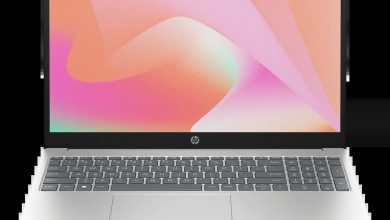
HP EliteBook Ultra G1q 14 B32A1UA Driver Download (Windows 11)
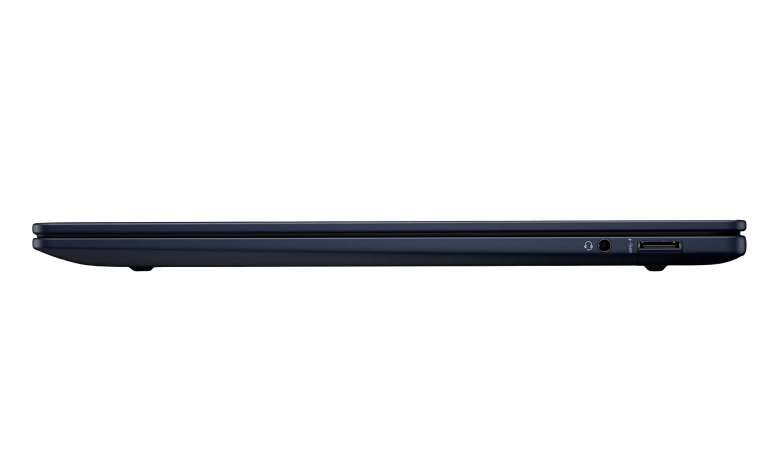
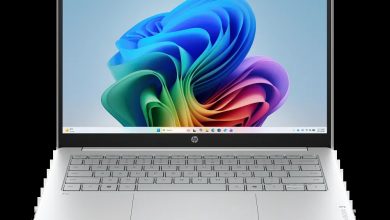
Looking for the HP EliteBook Ultra G1q 14 B32A1UA driver download for Windows 11? You are in the right place. This page brings together all 25 official drivers and firmware updates for the HP EliteBook Ultra G1q 14 inch Touch Notebook Next Gen AI PC (B32A1UA), straight from HP's official servers. This is a Snapdragon X Elite laptop, so several of the packages below are ARM64 builds made for its Qualcomm processor, including the Qualcomm Driver Pack, the ARM64 diagnostics tool, and the HP AI Companion package.
Before you start: this page covers Windows 11 (64-bit) only. Install the Qualcomm Driver Pack first, before any other driver, and keep your laptop plugged into AC power while installing firmware updates.
HP EliteBook Ultra G1q 14 B32A1UA Driver Index
- Diagnostics
- Docks Firmware and Driver
- Chipset
- Driver Enabling
- Keyboard, Mouse and Input Devices
- Firmware
- Security
- Software & Utilities
- Installation Steps
- Driver FAQs
Diagnostics
Docks Firmware and Driver
Chipset
Driver Enabling
Keyboard, Mouse and Input Devices
Firmware
Security
Software & Utilities

HP EliteBook Ultra G1q 14 B32A1UA Poly Camera Pro Software sp174628.exe
Installation Steps
- Install the Qualcomm Driver Pack first, then restart your laptop so the chipset, graphics, and network components are recognised.
- Install the firmware updates (SSD and touch firmware) one at a time. Keep the laptop plugged into AC power and do not switch it off while a firmware update is running.
- Install the dock firmware and dock drivers for any HP dock you use, then connect the dock and let Windows finish setting it up.
- Install the HP Wolf Security packages, HP Privacy Settings, Poly Camera Pro, and HP AI Companion.
- Restart your laptop once more and check that the touchscreen, Wi-Fi, and camera all work as expected.
Driver FAQs
Where do I download the HP EliteBook Ultra G1q 14 B32A1UA drivers?
You can download every driver in the HP EliteBook Ultra G1q 14 B32A1UA driver download list from this page. Each section above has a download panel for the official HP setup file, hosted on HP's own servers, so you do not need to hunt through HP's support site for each file.
Which version of Windows do these drivers support?
These drivers are for Windows 11 (64-bit) on the Snapdragon X Elite version of the EliteBook Ultra G1q 14. Several packages are ARM64 builds, which is correct for this Qualcomm-powered laptop — do not install Intel or AMD driver packages meant for other EliteBook models.
Do I need to install all 25 drivers?
Not necessarily. Install the Qualcomm Driver Pack and the firmware updates for your laptop's hardware first, then add the dock drivers only if you use an HP dock, and the security and utility software you actually want. If a device already works correctly, you can skip its driver.
What should I do if a driver fails to install?
First, make sure you downloaded the right package for Windows 11 (64-bit) and that the Qualcomm Driver Pack is already installed. Then right-click the setup file and choose "Run as administrator". If it still fails, restart the laptop, temporarily turn off any third-party antivirus, and try again. For firmware updates, always keep the laptop plugged into AC power.