HP EliteBook X Flip G2i 14 DK7T2PT Driver Download (Windows 11)
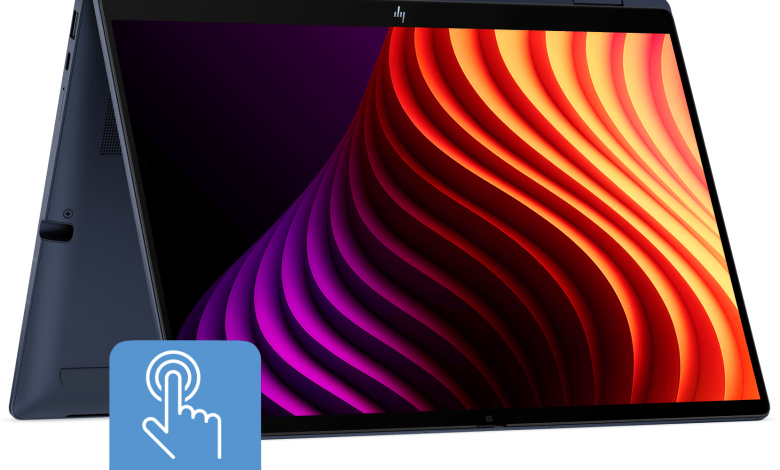
Download the latest HP EliteBook X Flip G2i 14 DK7T2PT drivers for Windows 11 Pro, direct from HP's official servers. This HP EliteBook X Flip G2i 14 DK7T2PT driver download covers the touch and 5G WWAN configuration with an Intel Core Ultra 7 366H processor, a 14-inch 3K touch display, 32 GB of LPDDR5x memory and a 1 TB SSD. The list below has all 57 official drivers for this configuration, including the MediaTek T900 5G modem drivers, the Wacom AES digitizer driver for the touch screen and the Nuvoton TPM firmware — six drivers that the standard EliteBook X Flip G2i 14 article does not carry. Every download on this page is the official HP setup file, verified against HP's support page for this model.
Before you start, connect your laptop to a stable internet connection, plug in the charger and create a system restore point. Install the drivers in the order listed below, starting with the BIOS and chipset drivers, and restart your laptop whenever a setup asks you to. If a driver setup says a newer version is already installed, you can skip that one.
Driver Index
- BIOS-System Firmware
- Diagnostic
- Docks-Firmware and Driver
- Driver-Audio
- Driver-Chipset
- Driver-Enabling
- Driver-Graphics
- Driver-Keyboard, Mouse and Input Devices
- Driver-Network
- Driver-Storage
- Software-PoS
- Software-Security
- Software-Solutions
- Utility-Tools
- Installation Steps
- Driver FAQs
BIOS-System Firmware
Diagnostic
Docks-Firmware and Driver
Driver-Audio
Driver-Chipset
Driver-Enabling
Driver-Graphics
Driver-Keyboard, Mouse and Input Devices
Driver-Network
Driver-Storage
Software-PoS
Software-Security
Software-Solutions

HP EliteBook X Flip G2i 14 DK7T2PT Poly Camera Pro Software sp174628.exe
Utility-Tools
How to Install HP EliteBook X Flip G2i 14 DK7T2PT Drivers
- Download the BIOS and chipset drivers first, and install the BIOS update while the charger is connected.
- Install the Intel Management Engine, chipset device software, NPU and Dynamic Tuning drivers, then restart your laptop.
- Install the graphics, audio and network drivers, including the MediaTek T900 5G and CAT-1 bis drivers if your unit has the WWAN modem, plus the Wacom AES digitizer driver for the touch screen.
- Install the remaining drivers and the HP software, such as HP Support Assistant, HP Wolf Security and Poly Camera Pro.
- Restart once more and open Device Manager to check that no device is left with a warning icon.
Driver FAQs
Where can I download HP EliteBook X Flip G2i 14 DK7T2PT drivers for Windows 11?
You can download them from this page. Every driver listed above is the official HP setup file for the HP EliteBook X Flip G2i 14 DK7T2PT on Windows 11 Pro, taken from HP's support page for this model, so you do not need to search HP's site driver by driver.
Does this HP EliteBook X Flip G2i 14 DK7T2PT driver download include 5G and touch drivers?
Yes. This article covers the touch and 5G WWAN configuration, so it includes the MediaTek T900 5G drivers, the HP 5G Sub-6 CAT 19 drivers, the CAT-1 bis narrowband module driver and the Wacom AES digitizer driver for the touch screen.
In which order should I install the DK7T2PT drivers?
Install the BIOS first, then the chipset drivers, then graphics, audio and network, and finally the HP software. Restart your laptop whenever a setup asks you to, and install only one driver at a time.
Do I need the dock firmware drivers if I do not use an HP dock?
No. You can skip the whole Docks-Firmware and Driver section unless you connect an HP USB-C or Thunderbolt dock to this laptop. The dock Ethernet, audio and firmware packages only matter when a dock is attached.