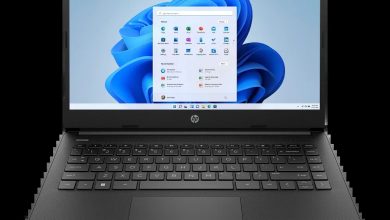
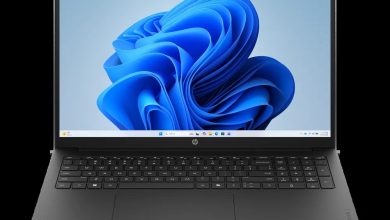
HP Laptop 14-ep1177TU C7SD0PA Driver Download (Windows 11)
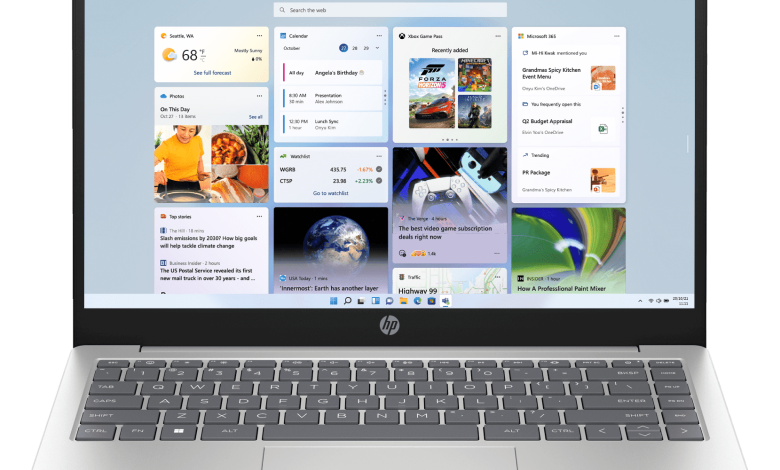
This page has every HP Laptop 14-ep1177TU driver download you need for Windows 11 (64-bit) — all 50 official drivers for this Intel Core 5 laptop (C7SD0PA), linked straight from HP's official server. Every download below is a genuine HP SoftPaq, free and with no sign-up needed. The HP Laptop 14-ep1155TU (C7SC8PA) shares the same HP support entry, so these same drivers cover that model too.
Before you start, check which Wi-Fi, Bluetooth and fingerprint hardware your laptop has in Device Manager — several sections below list more than one version for the same part, and you should install only the one that matches your hardware. There are also three BIOS updates listed: install only the one that matches your processor, and never switch the laptop off while a BIOS update is running. Install the BIOS and chipset drivers first, then graphics, audio and network, and restart your laptop when asked.
HP Laptop 14-ep1177TU C7SD0PA Driver Index
- BIOS
- Diagnostic
- Driver-Audio
- Driver-Chipset
- Driver-Enabling
- Driver-Graphics
- Driver-Keyboard, Mouse and Input Devices
- Driver-Network
- Firmware
- Software-PoS
- Software-Solutions
- Installation Steps
- Driver FAQs
BIOS

Diagnostic
Driver-Audio
Driver-Chipset
Driver-Enabling
Driver-Graphics
Driver-Keyboard, Mouse and Input Devices
Driver-Network
Firmware
Software-PoS
Software-Solutions
Installation Steps
- Download the driver file you need and double-click it — most HP SoftPaqs extract and launch setup automatically.
- Allow the installer through User Account Control if asked.
- Restart your laptop when prompted (required for BIOS, graphics and firmware updates).
- On a fresh Windows install, follow this order: BIOS, chipset, graphics, audio, then Wi-Fi and Bluetooth.
- Install only one driver per part — if a section lists several versions of the same driver, pick the one that matches your hardware in Device Manager.
Driver FAQs
Where can I find the HP Laptop 14-ep1177TU driver download for Windows 11?
This page lists every official HP Laptop 14-ep1177TU driver download for Windows 11 (64-bit) — 50 drivers in 11 categories, each linked directly from HP's official server. Pick the section you need, download the file and run it.
Which BIOS version should I install — F.19, F.17 or F.15?
Install only one BIOS update. F.19 Rev.A is the latest BIOS for Intel processors, and F.17 Rev.A is the previous version for the same processors. F.15 Rev.A is only for laptops with Intel Core Ultra 5 or Core Ultra 7 processors — do not install it on a standard Intel Core 5 model. Never switch the laptop off or close the lid while a BIOS update is running.
Which Wi-Fi and Bluetooth drivers should I install — there are several of each?
Check Device Manager, then Network adapters, to see your wireless hardware — this laptop can have Intel, Realtek RTL8xxx or MediaTek wireless hardware. Install the newest Wi-Fi driver and the newest Bluetooth driver that match your adapter, and only one of each. The older versions are kept for different hardware revisions.
Does this page also cover the HP Laptop 14-ep1155TU?
Yes. The HP Laptop 14-ep1155TU (C7SC8PA) shares the same HP support entry as the 14-ep1177TU, so the same 50 drivers apply to it. Install only the drivers that match the hardware in your own laptop — use Device Manager to check if you are unsure.